HTML to PDF: Every Way to Convert a Page or File, and How to Keep the Layout Intact
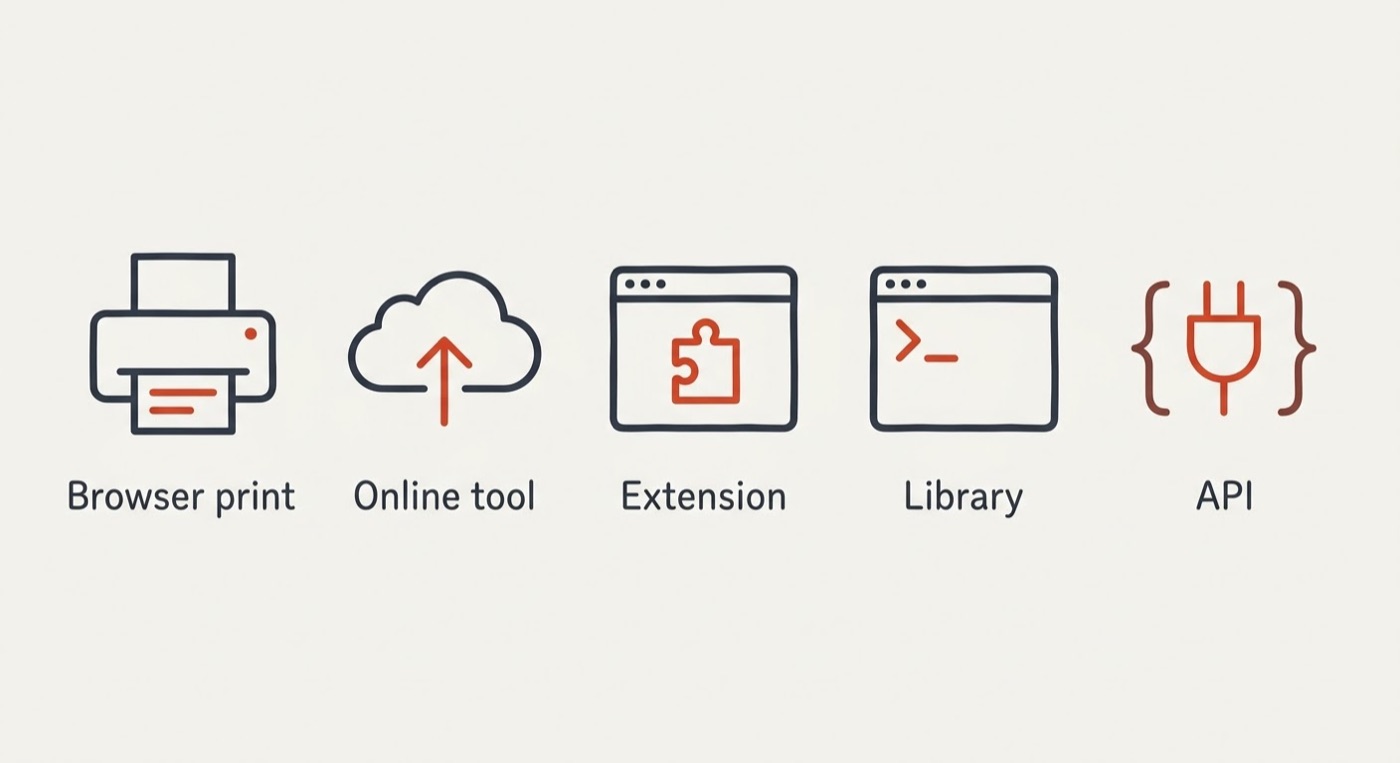
Converting HTML to PDF sounds like a one-click job, but the result depends entirely on which rendering engine does the work — that’s why the same page comes out perfect in one tool and broken in another, a distinction the W3C’s CSS Paged Media spec exists specifically to standardize. This guide maps every route: the browser you already have, online converters, browser extensions, command-line tools, and code libraries — plus the print-CSS rules that decide whether the PDF matches the page.
If you need one page once, the browser print dialog is enough; if you need hundreds of invoices a month, you need a library or an API. This site is a reference guide, not a converter — every tool named here lives on its own site.
What Actually Happens When HTML Becomes a PDF
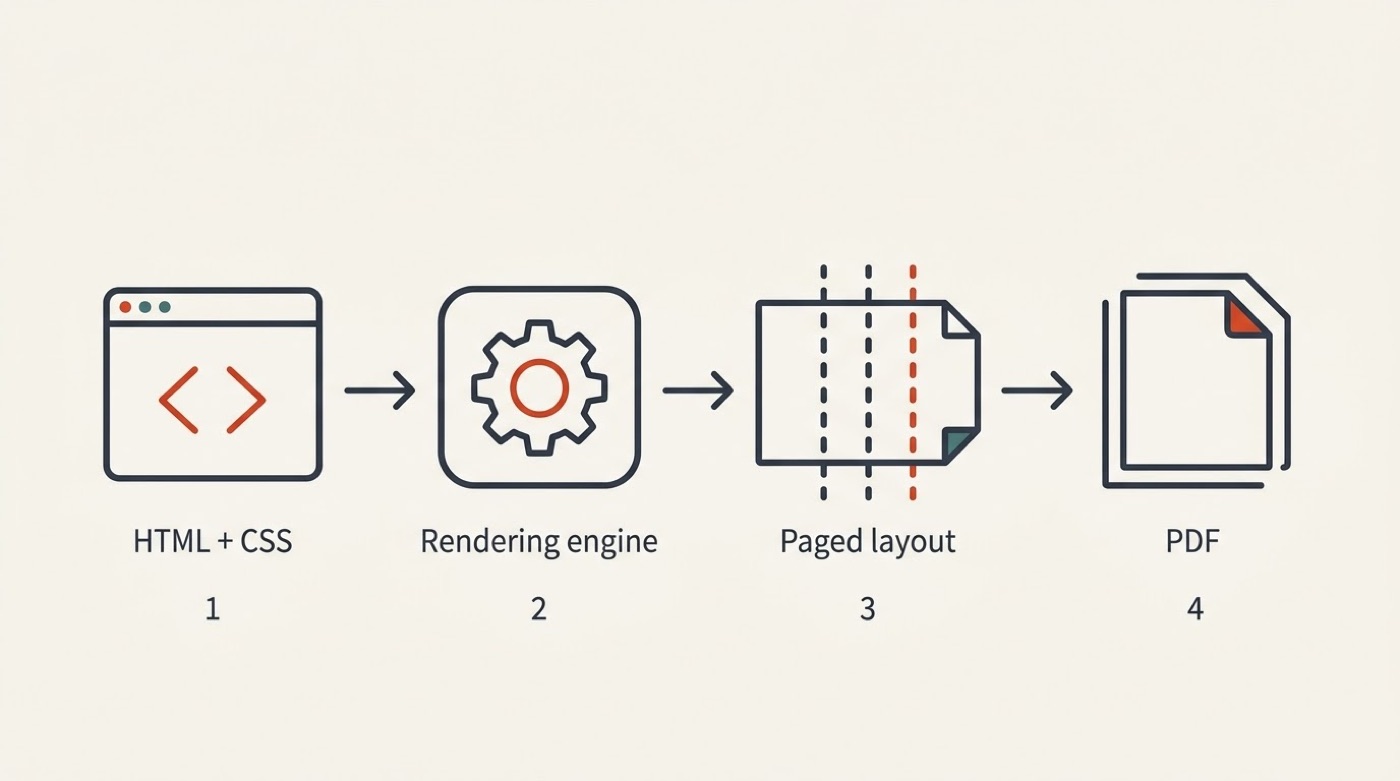
Converting HTML to PDF isn’t translating tags into PDF objects — it’s rendering the page with an engine and then slicing the result into fixed pages. That’s why the outcome depends so heavily on which engine does the work: Chromium (used by Puppeteer, Playwright, and most commercial APIs), an old WebKit build (wkhtmltopdf), or a purpose-built layout engine (WeasyPrint, PrinceXML). PDF itself is a paged, fixed-size format by design — a fundamentally different medium from a scrolling web page. Tool vendors like Nutrient and cloudlayer build their conversion on Chromium and use that as the basis for promising support for flexbox, grid, media queries, and web fonts.
The page is rendered, not translated
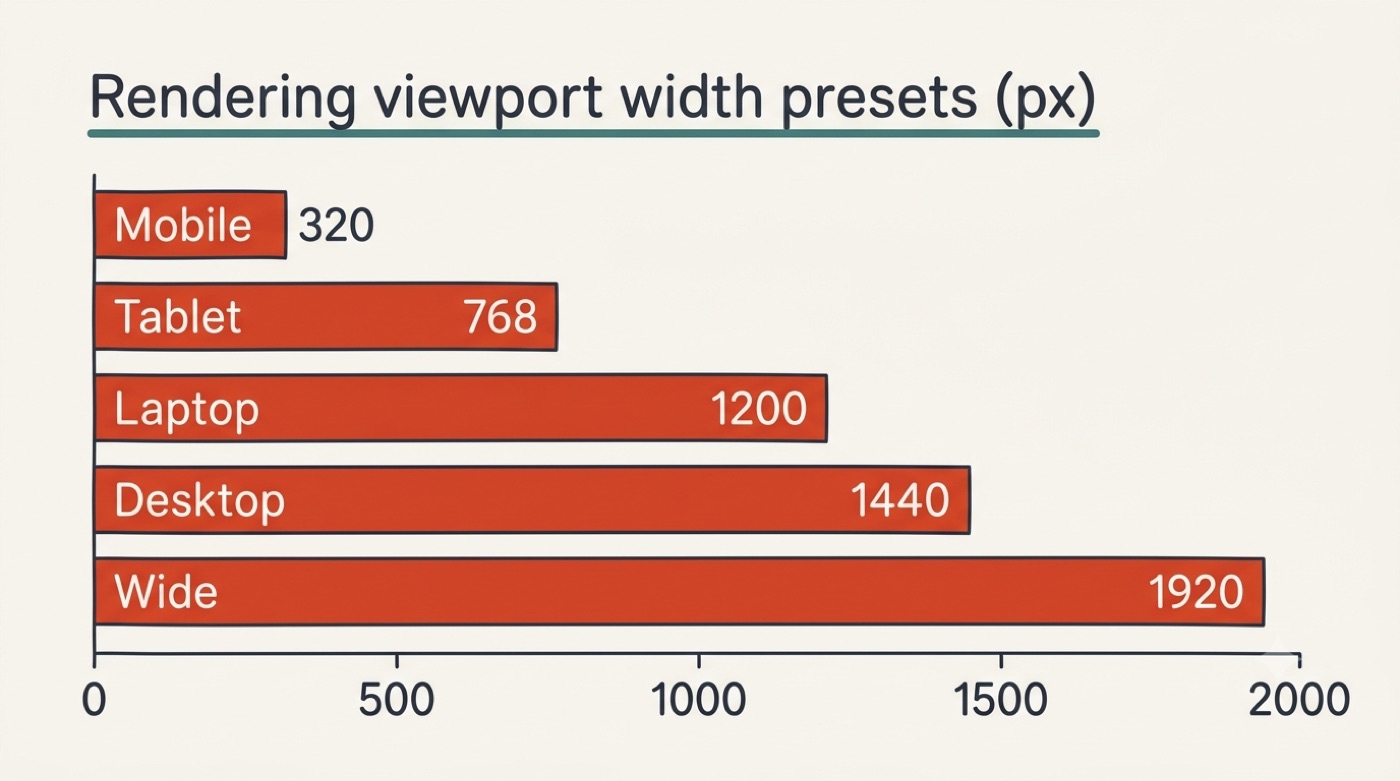
HTML is a scrolling ribbon of variable width; a PDF page is a fixed sheet — A4 (210×297 mm) or US Letter (8.5×11 in). That mismatch is the root of nearly every conversion defect: content gets cut at a page boundary, position: sticky and 100vh stop meaning anything, and width comes from the rendering viewport rather than a browser window. Tools expose this as settings rather than hiding it: iLovePDF lets you pick a screen width from 320–1920 px, choose A3/A4/A5/Letter, set margins to None/Small/Big, or render as one continuous long page. Sejda does the same with a pixel viewport and margins in px/in/cm/mm across A4/A3/A2/Letter/Legal.
Method 1 — Your Browser’s Print Dialog (Ctrl+P → Save as PDF)
The zero-install baseline
Chrome, Edge, Firefox, and Safari all print to PDF with nothing to install: Ctrl+P (⌘+P) → Destination: Save as PDF. It works for a local file too — open file:///path/page.html and print it directly. The settings that matter most: “Background graphics” (skip it and every background color or fill vanishes), scale, margins, and “Headers and footers.”
Where it stops being enough
A browser prints whatever one open window is showing — there’s no batch processing, no custom footer with page numbering, no automation, and what gets printed is the already-rendered page rather than the original HTML file with its linked resources (Smallpdf’s own FAQ leans on exactly this distinction to explain why its converter differs from browser printing). Adobe Acrobat offers a similar path through a browser extension or its desktop app (Tools → Create PDF → Web Page), which can crawl a few levels deep into a site.
Method 2 — Online Converters
Three ways they take input
Online converters generally accept a URL, an uploaded .html file, or pasted code. A local file with no bundled assets loses its styling and images the moment it’s uploaded alone — which is why iLovePDF and html2pdf.com accept a ZIP containing the HTML plus its CSS and images; html2pdf.com takes up to 20 files per run and offers Grayscale, Landscape, No Background, and No JavaScript options.
Limits, watermarks and what happens to your file
| Service | Free-tier limits | Retention / notes |
|---|---|---|
| Sejda | 3 tasks/hour, up to 20 links per task, 50 MB per file, one file per task | Files deleted after 2 hours; 0–5s render delay, print stylesheet, cookie-banner hiding |
| Smallpdf | No registration required | Auto-delete after 1 hour; GDPR, ISO/IEC 27001, TLS; Pro removes limits |
| html2pdf.com | Up to 20 files per batch | Data deleted after 1 hour |
| PDFCrowd | Strips ads, popups, sidebars by default (reader mode) | Paid license removes PDF branding |
| CloudConvert | — | Operated by Lunaweb GmbH, Munich |
Sending a document through any online converter means uploading it to a third party — for contracts, medical records, or payment data, that’s a real risk to weigh, not a formality.
Method 3 — Browser Extensions and Bookmarklets
One click from any page
Extensions like PDFCrowd’s “Save as PDF” and Sejda’s “Save as PDF” convert the page currently open with a single click; Sejda also gives site owners an embeddable “Save to PDF” button for visitors to use.
Why a bookmarklet is the riskier of the two
A bookmarklet is a snippet of JavaScript that grabs the HTML of the open page and ships it to a third-party API. Browser extensions go through a store review process; a bookmarklet is reviewed by no one — a distinction DocRaptor itself points out in its own guidance on the two approaches. Both scale poorly for anything beyond occasional use: each page still needs a manual click.
Method 4 — Command Line and Server-Side Libraries
Node.js: Puppeteer and Playwright
Puppeteer (Google, Apache 2.0) drives Chrome/Chromium and pulls down a browser binary around 300 MB in size; a typical call looks like page.pdf({ format: 'A4', printBackground: true }), usually paired with waitUntil: 'networkidle0' so dynamic content has time to load. Playwright (Microsoft) can drive Chromium, Firefox, and WebKit, but its page.pdf() method only works against headless Chromium — calling it on Firefox or WebKit throws an error. Neither library fills forms, adds signatures, or encrypts the output.
Python: WeasyPrint
WeasyPrint is BSD-licensed, supports HTML5/CSS3/SVG, and handles multi-page documents with footnotes and page numbering; it integrates cleanly with Django and Flask via HTML('page.html').write_pdf('output.pdf'). It does not execute JavaScript at all, which rules it out for single-page apps, and it requires the system libraries Cairo and Pango to be installed.
PHP: Dompdf, and the CLI classics
Dompdf lives comfortably inside Laravel and Symfony projects. wkhtmltopdf is a command-line tool built on an old WebKit engine, licensed LGPLv3; the project has been archived and unmaintained since 2023, so modern flexbox and grid layouts can render incorrectly given the engine’s age. Pandoc converts between dozens of document formats, but for anything print-related the actual layout work is handed off to LaTeX, not CSS.
Client-side: jsPDF and html2pdf.js — and their catch
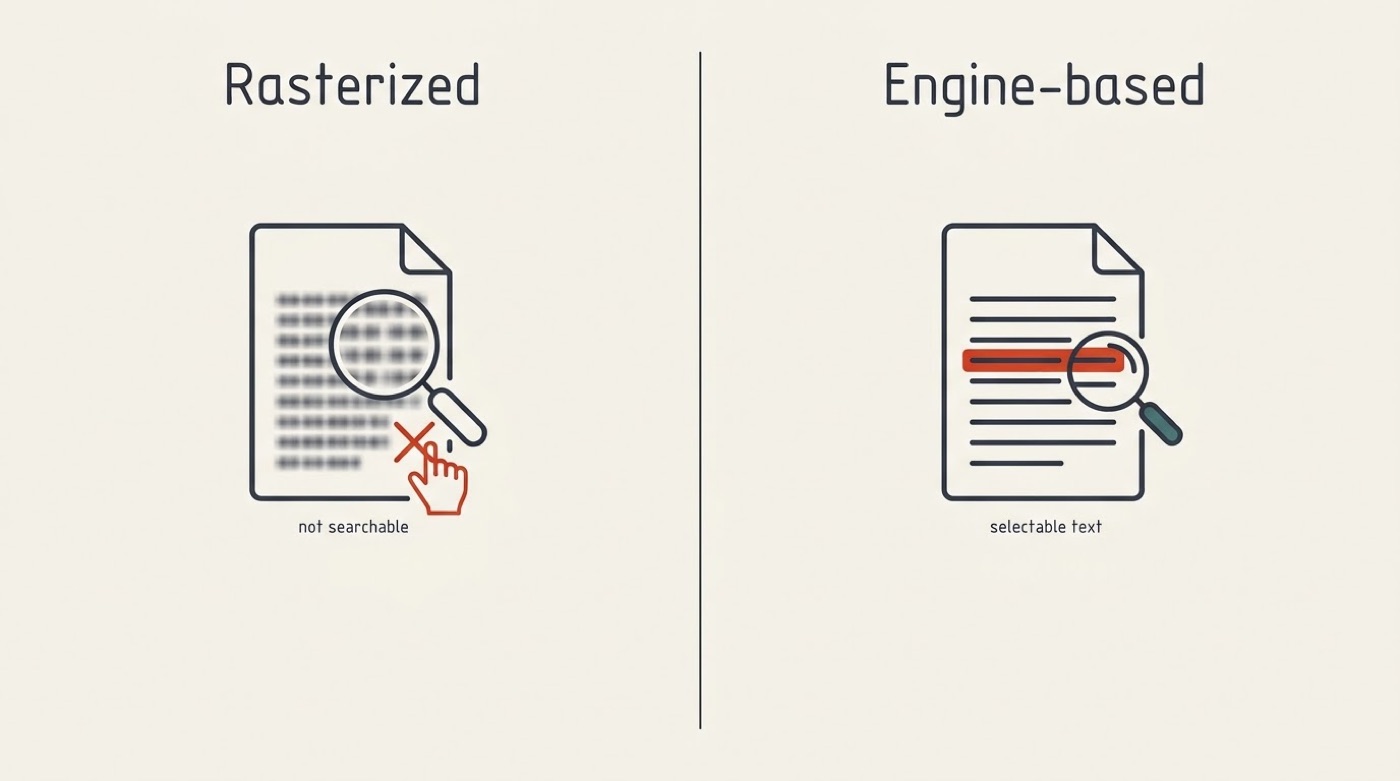
Both are MIT-licensed and run entirely in the browser without a server, but both draw the page through html2canvas — meaning they rasterize it. Text in the resulting PDF can’t be selected or searched, grid, flexbox, and sticky positioning tend to break, output varies by browser and screen resolution, and long documents can exhaust a tab’s memory. pdfmake (JSON-based) and PDFKit (Node) don’t convert HTML at all — they build a PDF from code instead.
When HTML isn’t the right source at all
PrinceXML is a commercial engine built for print typography and used widely in publishing. DocRaptor is built on top of it, and uses that foundation to offer fillable PDF forms, accessible PDF output, and arbitrary page sizes — capabilities beyond what a standard Headless Chrome pipeline provides.
How to Choose: A Decision Table
| Scenario | Best method |
|---|---|
| One page, once | Browser print dialog |
| Local site with its own CSS | Online service with ZIP upload |
| A batch of URLs, once a month | Online service or bookmarklet |
| Invoices and reports from an app | Library matching your backend language |
| Thousands of documents, forms, signatures | HTML to PDF API |
| Print typography (book, catalog) | PrinceXML or WeasyPrint |
| Document with confidential data | Local tool, not the cloud |
Method 5 — HTML to PDF APIs for Automation
Skipping infrastructure is the main thing an API buys you. No need to keep a browser, fonts, and system dependencies running on your own server — the provider handles the queue and the scaling. Nutrient’s Document Engine exposes a REST /api/build endpoint on a Chromium-based engine, with form fields, digital signatures, encryption, watermarks, and headers/footers, plus SDKs for JavaScript, Python, Ruby, PHP, Java, and .NET.
Template-driven generation matters when volume is high. cloudlayer.io authenticates over REST with an x-api-key header and renders Nunjucks templates — one template can produce thousands of PDFs, each filled with different data, through template/html/url-to-PDF endpoints.
Language coverage decides whether an API fits an existing stack. DocRaptor ships integrations for Java, JavaScript, jQuery, .NET, Node, PHP, Python, and Ruby, so teams rarely need to write a raw HTTP client against it.
No-code automation
Zapier, Make (formerly Integromat), Automate.io, and Kotive can all call these APIs on a trigger — an invoice created, a form submitted — without a line of code.
Why the PDF Doesn’t Look Like the Page (and How to Fix It)
Backgrounds and colors disappear
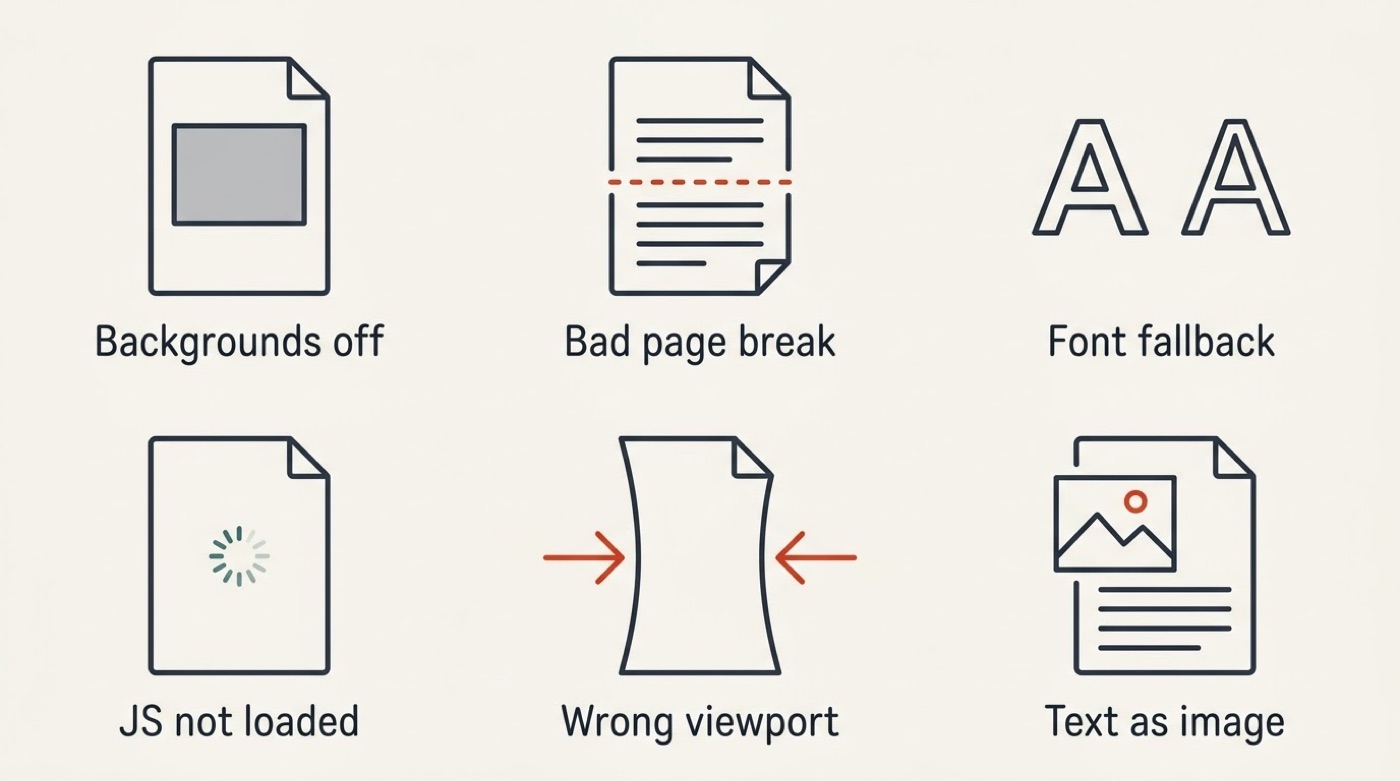
Browsers and several engines skip printing backgrounds by default — fix it with the “Background graphics” checkbox, Puppeteer’s printBackground: true option, or the CSS property print-color-adjust: exact. html2pdf.com goes the other direction, offering a No Background option specifically to save toner.
Content is cut in half at the page break
Page breaks need to be controlled explicitly: break-inside: avoid on cards and tables, break-after: page before a new section, and orphans/widows for paragraph flow. The @page rule — @page { size: A4; margin: 20mm } — sets format and margins at the page level. The older page-break-* family is understood by nearly every engine; the newer break-* properties aren’t universally supported yet.
The vast majority of the web today is authored, without much consideration, to be exclusively read on screens. Print styles are an afterthought, if a thought at all.W3C, CSS Paged Media Module Level 3
Fonts fall back to something else
The rendering engine needs a way to actually see the font — a web font referenced by a relative path often won’t resolve inside a PDF pipeline, and a font installed locally on a developer’s machine isn’t present on the server doing the conversion. The fix is consistent: use absolute font URLs, embed the font file, and wait for fonts to finish loading before triggering the print.
Dynamic content renders empty
Single-page apps, charts, and lazy-loaded content frequently aren’t finished rendering when the conversion fires. Puppeteer handles this with waitUntil: 'networkidle0' or by waiting on a specific selector; Sejda offers a render delay of up to 5 seconds; html2pdf.com’s No JavaScript option is there for pages where scripts only get in the way. WeasyPrint doesn’t execute JavaScript at all, so it’s simply the wrong tool for this category of page.
The layout is desktop-wide or mobile-narrow
Rendering happens inside a set viewport, not an actual window — which is why iLovePDF exposes a screen-width setting from 320–1920 px and Sejda takes a pixel viewport directly. Often the real fix isn’t hunting for the right width but writing a dedicated @media print layout instead.
Everything is a picture
If text in the output PDF can’t be selected, that’s rasterization at work — the signature of html2canvas-based tools like jsPDF and html2pdf.js. It breaks search, copy-paste, accessibility, and inflates file size. The only real fix is switching to an engine-based tool instead.
The file weighs 30 MB
A PDF inherits its weight from the source: uncompressed images and bloated HTML carry straight through into the document. Compress images before conversion, not after.
A Pre-Flight Checklist Before You Convert
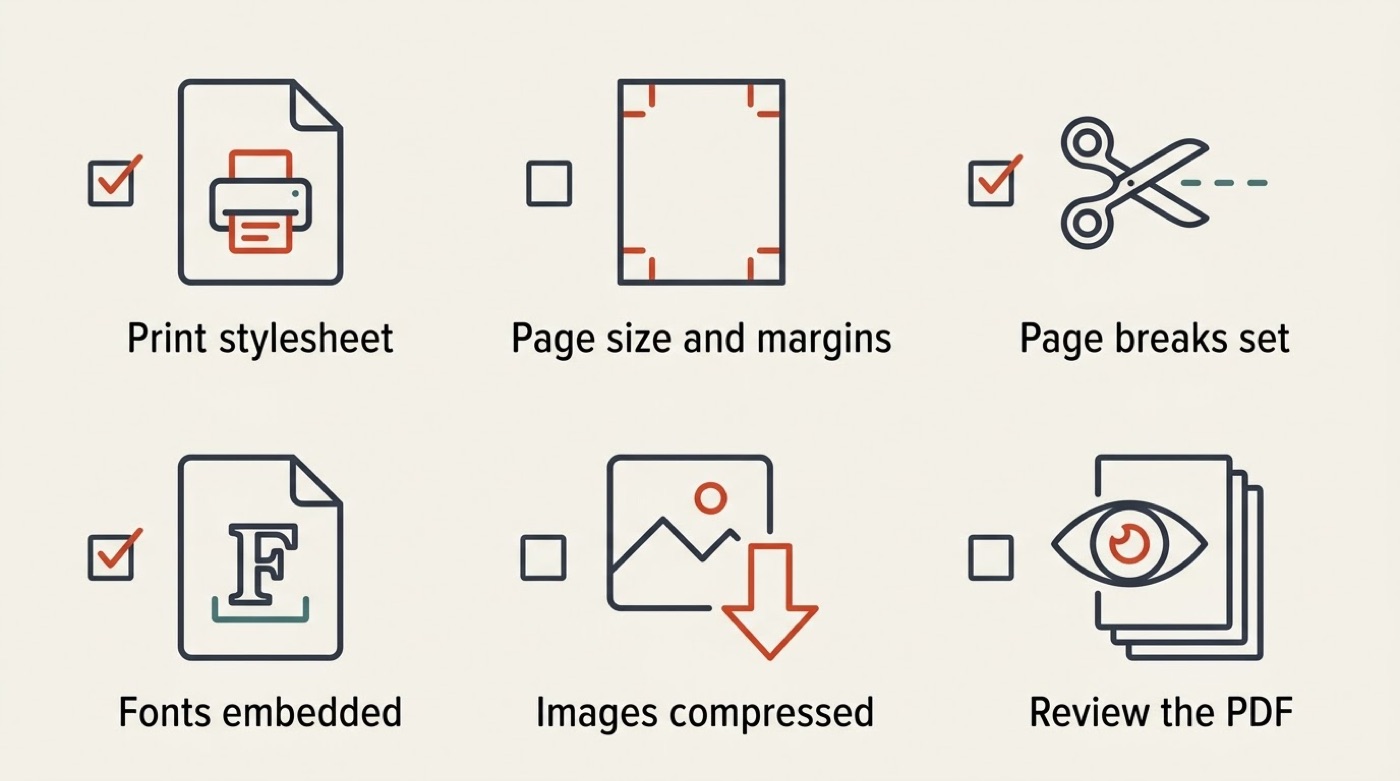
- A dedicated print stylesheet exists.
@pageis set with a format and margins.- Page breaks are placed deliberately around cards, tables, and section starts.
- Backgrounds are turned on (or off) as a conscious choice, not a default.
- Fonts are reachable by the rendering engine — absolute URLs, embedded where needed.
- Dynamic content has had time to finish loading before the print fires.
- Images are compressed ahead of conversion, not after.
- The finished PDF gets opened and paged through in full — a step both cloudlayer and Nutrient call out explicitly in their own docs, and the one most often skipped.